How to choose a cheat: pre-purchase checklist
Contents6 sections
The easiest way to find the right cheat is by elimination: first the game and client, then the product type, features and system requirements. Compare status, plan and price at the end, when only the products that will definitely run on your computer are left.
Below: a section-by-section walkthrough of a CheatForce product page, easy-to-miss requirements from the catalog, and a checklist for before you click "Buy".
Game, platform and client
Start with the catalog by game: a game's page collects all its products. Filter out what doesn't fit by platform right away — PC, Android, iOS or emulator. For example, Cerberus PC is made for PUBG Mobile in the GameLoop emulator, not for a phone.
Next, open the "System requirements" section and find the "Game client" field. It lists the launchers the cheat works with:
- Bleak for ARC Raiders — Steam and Xbox;
- Ancient ABI Radar for Arena Breakout: Infinite — Arena Breakout Launcher, Steam, Microsoft Store and Epic Games;
- Arcane PUBG Radar — Steam and Kakao.
If your launcher isn't on the list or the field is empty, check with support before paying.
On a phone, the Android version and login method matter. Zolo for PUBG Mobile lists Android 10–14 and login via Twitter, Facebook, guest or Email. Magic Lite for Oxide: Survival Island requires Android 10–16 and a 64-bit device.
ESP, Lite or a full cheat
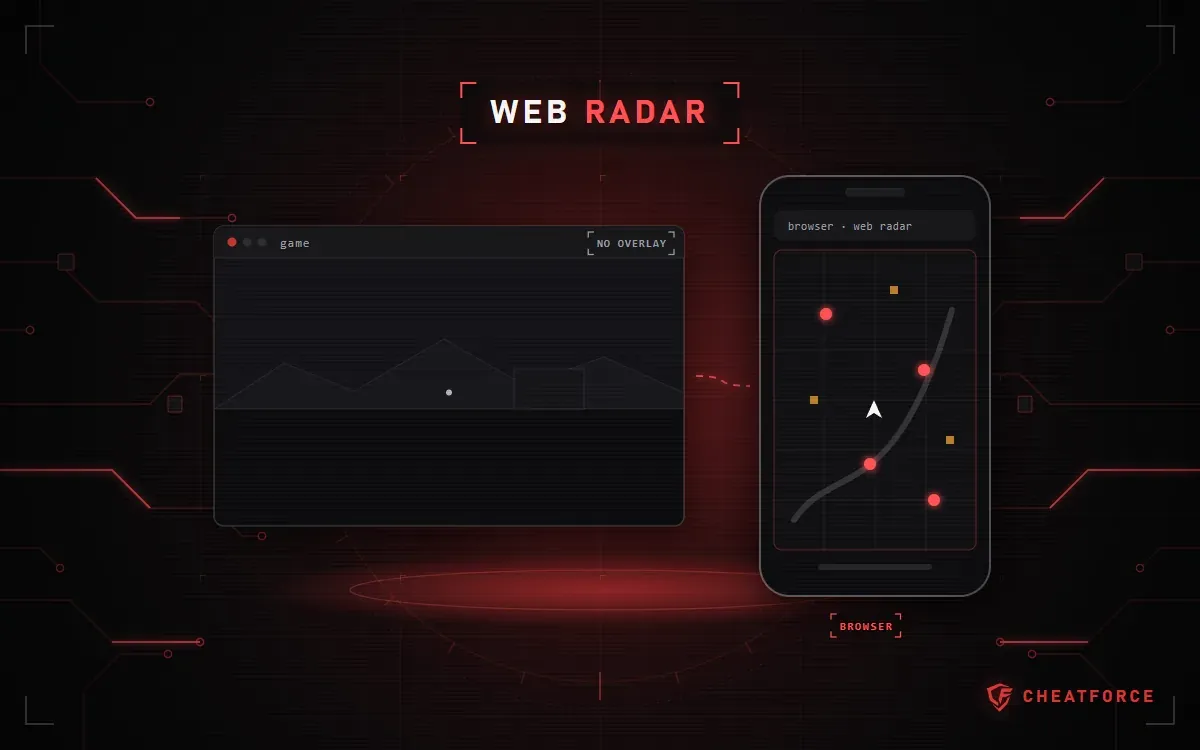
By purpose, products fall into three groups. ESP (wallhack) shows players and loot but doesn't help you aim. A full cheat adds aiming — Aimbot or Silent Aim — and often No Recoil. The third option is a web radar: the map with players and loot is shown not in the game but in a browser on another screen, as with NNCheats Radar.
The Lite tag usually means a cut-down set, but each developer cuts something different:
- Authority Lite for Escape from Tarkov — ESP for players, items, containers and bodies with a filter; the description mentions no aiming. Authority Full adds Silent Aim, Aimbot and No Recoil.
- Stealth Lite for Rust is a "lightweight version" according to its description: less recoil and spread, plus Chams. Stealth Full for Rust already has Silent Aim, player and loot ESP, and a radar.
- Medusa Lite, despite the Lite in its name, claims Silent Aim and Instant Hit — a set close to Medusa Rage.
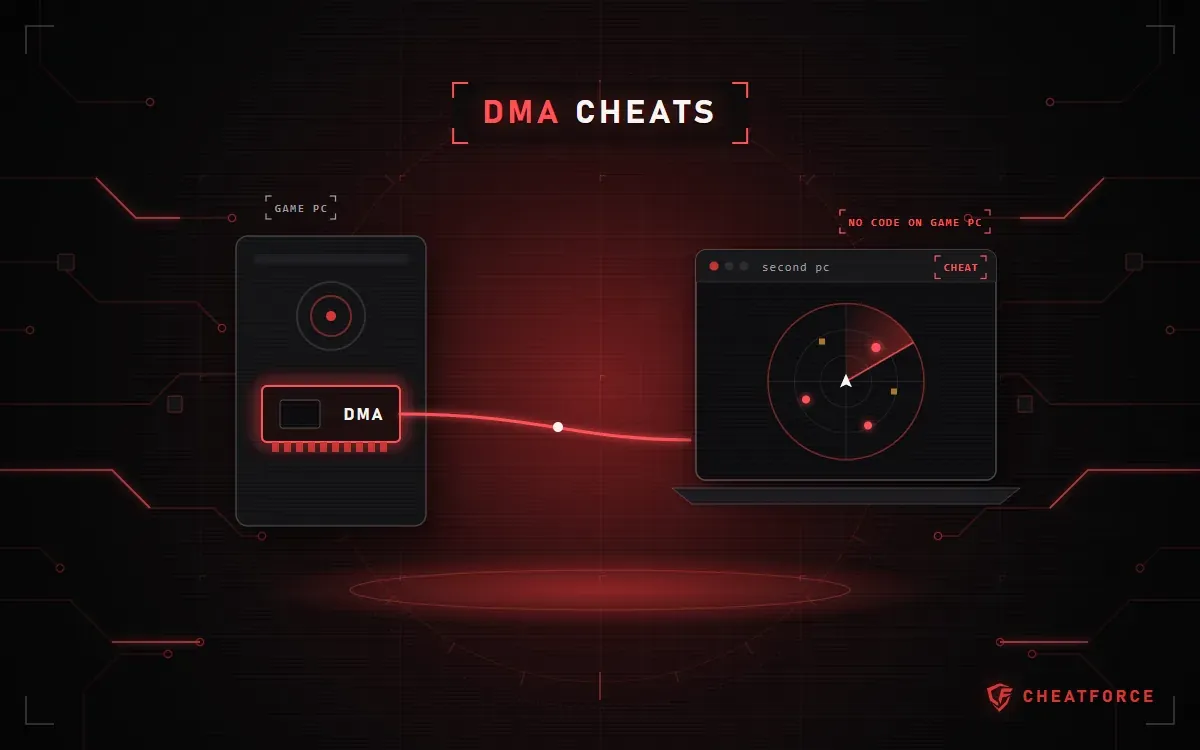
So you can't tell the type from the name. If you only want on-screen info without aiming, verify that in the description and the feature list. A separate question is the difference between external and internal and what it changes for you.
Features: trust the list, not the name
A product's capabilities are described in two sections: "About the product" gives a short summary, and "Cheat features" gives a list. Click "Show all features" and read the list to the end.
There's one rule: if a feature isn't on the list, the product doesn't have it. Don't fill in the set based on the name, screenshots or a similar product. The feature glossary explains what Triggerbot, Chams, Glow and Loot Filter mean.
If you record or stream your games, find the "OBS recording bypass" line in the additional requirements. It differs even between products with the same name: Authority Lite for DayZ has "Yes", Authority Lite for Escape from Tarkov has "No".
System requirements: what to check
Check this section more carefully than the rest. A telling example is the Mason Full requirements for Rust: UEFI and GPT, Hyper-V and VT-x/VT-d enabled, Secure Boot disabled, and a USB flash drive to launch it. Other catalog pitfalls:
| Field | Catalog example | What to check on your PC |
|---|---|---|
| Systems | CourierScript Radar: Windows 10 up to 22H2 and 11 up to 23H2 | Version and build |
| Systems | NNCheats Radar: Windows 10/11 no newer than 23H2 | Windows version |
| Systems | TitanX Spoofer: Windows 11 Pro 24H2/25H2 | Edition: Pro or Home |
| Systems | Macro Product: Russian-language Windows only | System language |
| Processors | Ignite for Fortnite: no AMD FX or Xeon | CPU model |
| Game mode | Ancient ABI Radar: fullscreen | Window mode in the game |
| Additional requirements | Coffee: UEFI and GPT only, Secure Boot off | BIOS type and disk partitioning |
| Additional requirements | BTG for Valorant: core isolation on | Core isolation status |
Requirements of different products can contradict each other. BTG asks you to turn core isolation on, while EXLAB EFT asks you to turn it off. If you buy cheats for two games, one Windows setting may suit one cheat and get in the way of the other.
It's easy to check your PC with System Checker. The utility shows your Windows version and build, CPU, BIOS, Secure Boot, virtualization, Memory Integrity (part of core isolation), TPM and installed anti-cheats. It doesn't disable or change anything. You can send the report.txt file to support and ask whether your system is suitable.
Important. Additional requirements are what you'll have to do to your system. Decide before paying whether you're ready, for example, to turn off Secure Boot or change your disk partitioning.
Status, plan and instructions
Status
The status is shown next to the product name. Go for Undetected. With "Being updated" you can't buy the product: sales are paused until a new version is out. "Risk" is on sale, but ask support before paying what the label means for that specific product. Read more about what the statuses mean.
Neither the status, nor the cheat type, nor the price protects you from a ban — this applies to every product in the catalog.
Plan
A plan is the term of your key. Almost every product has a 1-day plan, but not all of them: Ignite for Fortnite starts at 7 days, Macro Product at 15. Compare the price per day and don't buy a long term until you're sure the cheat launches for you. If you see a "Lifetime" plan, ask support what it covers. Read more about how plans work.
Instructions
If a product has instructions, there will be an "Installation instructions" block with an "Instructions" button under the plans. Open it before paying: it shows what system prep the launch will require. For iOS versions, decide in advance how you'll install the app: without a PC you'll need a certificate, and it's sold separately.
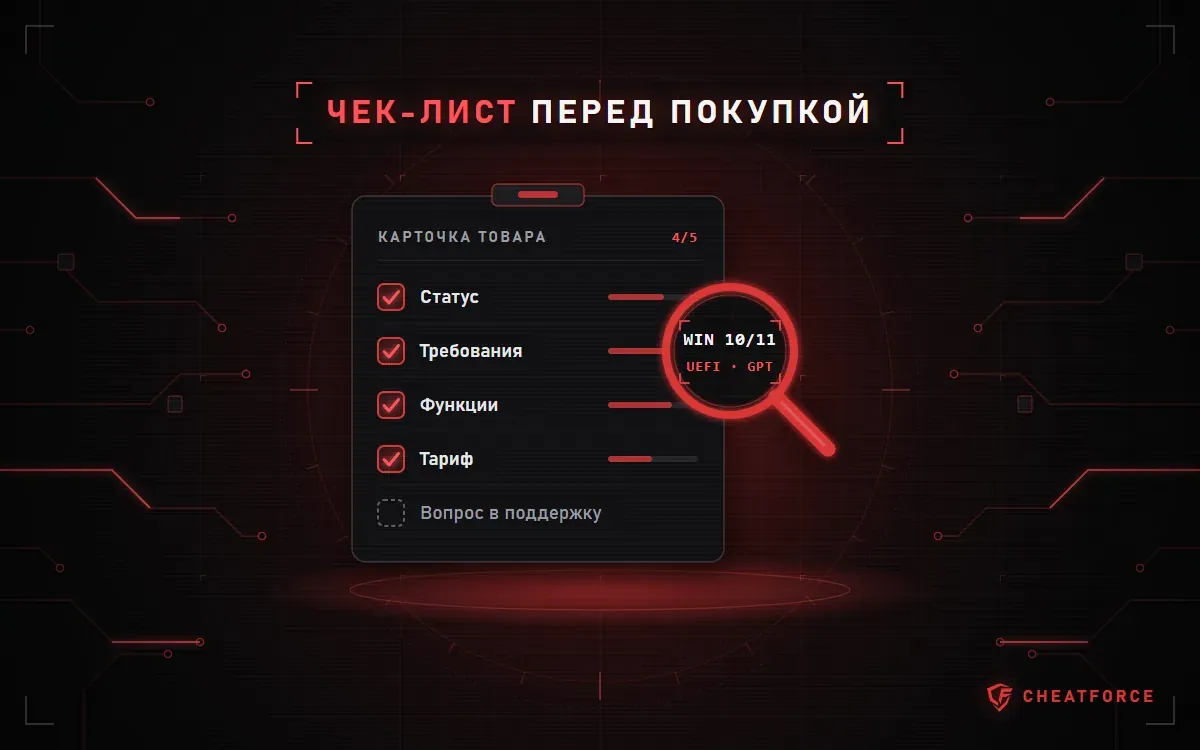
Checklist before you pay
Go through the list on the page of the product you've chosen:
- The platform matches: PC, Android, iOS or emulator.
- Your launcher is in the "Game client" field; on a phone, the Android version and login method fit.
- The type is clear: ESP, a full cheat or a web radar.
- Every feature you need is in the "Cheat features" section.
- Your Windows version, build, edition and language fall within the "Systems" field.
- Your processor isn't among the exclusions.
- The game will run in the window mode from the "Game mode" field.
- You're ready to meet the "Additional requirements": BIOS, disk partitioning, Secure Boot, virtualization, a USB flash drive.
- The status is Undetected, or if it's "Risk", you have an answer from support.
- The plan is chosen by price per day, and you've read the instructions.
Any remaining questions can be asked in the community chat, where other buyers answer too, or in the Telegram support bot. Name the product and game right away and attach a System Checker report.