WARDOGS
Bleak cheat for WARDOGS on Windows
Undetected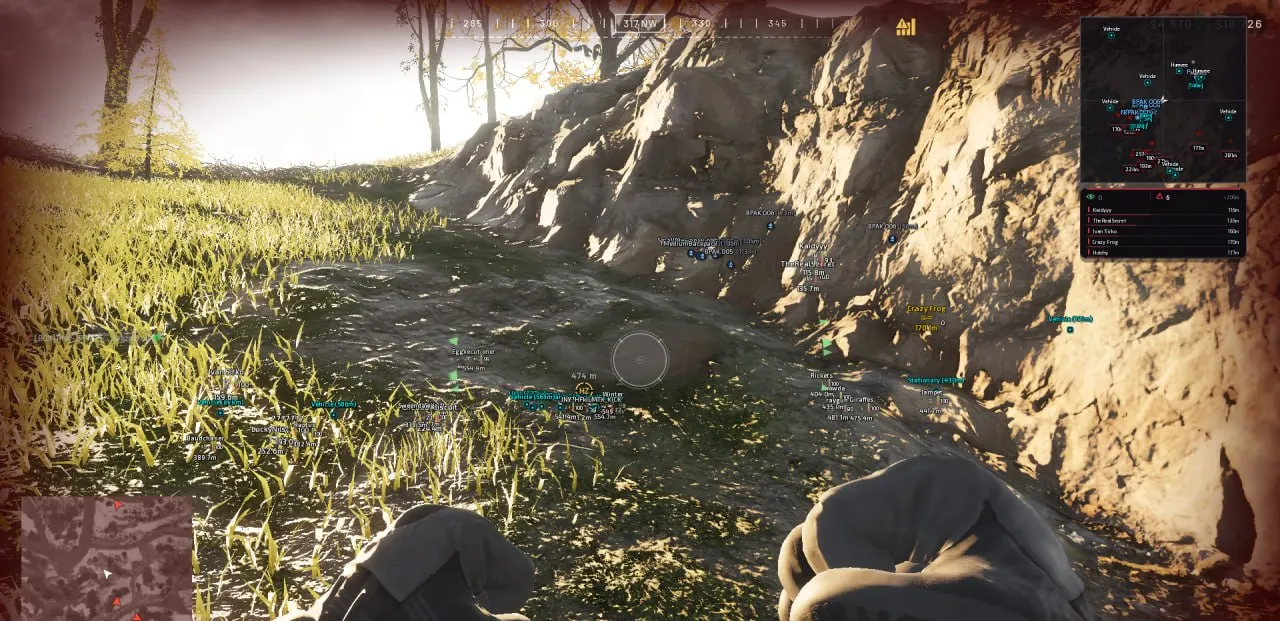
01 / 09
Purchase
Setup instructions
Bleak for WARDOGS: system requirements
Game mode
not specified
Processors
Intel / AMD
Game client
not specified
Systems
not specified
Built-in Spoofer
No
USB drive
No
Additional requirements
Works with Secure Boot on; BIOS: any; Disk type: any; Overlay: Discord; Disable: Windows Defender, VBS, Core Isolation
About Bleak for WARDOGS
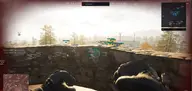
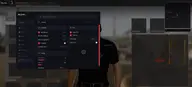
External BLEAK for WARDOGS: aimbot with bone selection, smoothing and FOV, bullet prediction, memory-based no recoil, player ESP with armor, health and skeleton, hiding and highlighting of faction allies, corpses, a warning when an admin shows up in the lobby, loot ESP with a smart filter and vehicle ESP with type filters — from helicopters to boats, a 2D radar and Battle Mode. Works through the Discord overlay with Secure Boot on, Steam client, Windows 10 and 11 versions 2004–26H1.
Features of Bleak for WARDOGS
Aim Mouse
- Aimbot master switch. Turns on automatic aiming at enemies inside the FoV zone.
Aim-Bot keybind
- Main aimbot activation key. Aiming works only while the key is held, which keeps it controlled and natural.
Aim-Bot keybind 2
- Second (extra) aimbot activation key - handy to put on a side mouse button.
Crosshair
- Shows a static crosshair in the center of the screen (with its own color).
Crosshair style
- Static crosshair style: Dot, Cross, T-shape, Ring or Chevron.
Smoothing
- Aim smoothing strength (1-10). High values give smooth, human movement instead of sharp robotic snaps. The key setting for playing legit.
Radius
- Aim zone (FoV) radius in pixels (0-300): the screen area within which the aimbot locks onto a target.
AimBone
- Head — the head (maximum damage, high risk).
- Neck — the neck (a good balance of damage and stealth).
- Chest — the chest (less damage, but a larger hit area and maximum stability).
Draw FOV
- Show the aim zone on screen.
FOV Fill
- Fills the aim zone from the inside (you can turn it off to leave only the outline).
FOV shape
- Aim zone shape: Circle, Triangle or Diamond.
Color Fov
- Aim zone color. Next to the settings there is a live mini preview of the zone with the current radius and shape.
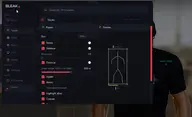
Box Type
- Choose the box type around enemies: Full, Corner, 3D Box or None (off).
Names
- Shows in-game names above players' heads.
Skeleton
- Turns on the enemy skeleton display.
Bone thick
- Skeleton line thickness slider (1-5).
Distance
- Shows the distance to the target in meters.
Draw range
- Player draw distance in meters (0 - no limit). Very distant targets switch to a simplified mode (box without skeleton) so the read channel is not overloaded.
Health
- Turns on the player health bar.
Armor
- Turns on the player armor bar.
Hide allies (faction)
- Hides faction allies (the game has three factions: Lonestar / Valkyra / Manticore). In the lobby and at the starting base everyone is in one faction - turn it off to see everyone.
Highlight allies
- Highlights your allies in a separate color (in ESP and on the radar).
Corpses
- Shows player corpses as gray markers so you do not confuse them with living enemies.
Spectators
- Shows the spectator list (players watching you after they die).
Admin in lobby warn
- Red warning when an admin/developer shows up in the lobby (checked every 2s) - for account safety.
Danger warning
- Warning panel for nearby enemies: a counter and a list of the closest enemies.
Off-screen arrows
- Arrows at the screen edges pointing to enemies outside your view.
Arrows radius
- Radius of the circle on which the off-screen arrows sit (100-600).
Aiming at me warn
- A warning when any enemy is aiming right at you.
Preview
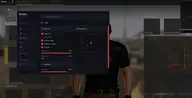
- Live preview of your ESP setup right in the menu (box, skeleton, name, distance, bars).
Battle Mode
- Battle mode with one checkbox: turns off the noisy ESP — loot, vehicles, grenades, crates, corpses and allies; only enemies stay on screen and on the radar.
Dropped Items
- Master switch for loot ESP (items on the ground).
Item Name / Item Distance / Item Marker
- Loot sub-settings: item name, distance to it and a marker.
Loot filter
- Choose categories to show: Weapons, Attachments, Ammo, Meds/Boosts, Armor, Helmets, Backpacks, Grenades, Other.
Smart loot filter
- Smart filter: checks what is in your backpack and hides surplus items (medkits/grenades when you have enough).
Items dist
- Item display distance (0-1000m).
Vehicles
- Vehicle ESP: name and distance.
Vehicle Filters
- Helicopters, Planes, Tanks, APCs, Cars/trucks, Boats, Emplaced guns - turn on only the types you need.
Vehicles dist
- Vehicle display distance (0-3000m).
Radar 2D
- Master switch that puts a 2D radar on screen (a dark card, chevron contacts, a white camera arrow in the center).
Only Players
- Filter: the radar shows players only, hiding extra info.
Items on radar
- Shows loot on the radar.
Vehicles on radar
- Shows vehicles on the radar.
Corpses on radar
- Shows corpses on the radar (separate toggle).
Radar Zoom
- Radar zoom (lets you zoom the object view out or in).
Radar size
- Slider for the overall size of the radar window on screen (from 200 to 700).
X position / Y position
- Sliders for precise radar positioning along the X and Y axes of your monitor.
Appearance
- Live preview of the radar's look right in the menu.
No recoil (memory)
- Memory-based no recoil: while it is on, zero recoil (ViewKick) is written to your current weapon; when you turn it off, the original value is restored automatically.
Bullet prediction
- Bullet prediction: the aimbot accounts for target movement speed (lead) and bullet drop over distance; ballistics are taken from the weapon currently in your hands.
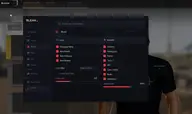
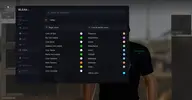
Palette
- Color 2D Box — Color of the box around an enemy.
- Box (not visible) — Box color for the "not visible" rendering variant.
- Color Bone — Color of the skeleton lines.
- Skeleton (not visible) — Skeleton color for the "not visible" variant.
- Color Name — Color of the player's nickname.
- Name (not visible) — Nickname color for the "not visible" variant.
- Color Distance — Color of the distance text.
- Allies (faction) — Highlight color for allies (ESP + radar).
- Knocked — Color for knocked players (so you don't mix them up with your own).
- Color Crosshair — Color of the static crosshair in the center of the screen.
- Loot colors — Color setting for each loot category: Weapons, Attachments, Ammo, Medkits, Armor, Helmets, Backpacks, Grenades, Other.
- Vehicle color — ESP color for vehicles.
Menu color
- Menu accent (theme) color.
Overlay FPS limit
- Overlay FPS limit (0-360): raise it for smoother ESP.
Watermark
- On-screen watermark.
Language
- Menu language: English / Russian (all menu items and item names are translated).
Search
- Search bar for all menu features (in the header).
Menu Key
- Open and close the menu with the Insert or Home key.
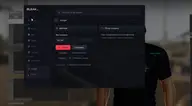
Configs
- Input Name — Field for entering the name of your new config (the build name is filled in by default).
- Create New — Create and save a new config file with the entered name.
- Save Selected — Overwrite the config with the entered name using the current menu settings.
- Load Selected — Load settings from the config selected in the list (applies them to the current session).
- Rename — Rename an existing config selected in the list.
- Delete — Permanently delete the selected settings file.
- Refresh List — Force-refresh the config list (useful if files were moved manually).
- Config list — Shows all saved configs; the applied one is marked with an ACTIVE badge, and double-clicking a row loads the config instantly. The last active config is picked up automatically on the next launch.