
PUBG: Battlegrounds
Bleak cheat for PUBG: Battlegrounds on Windows
Undetected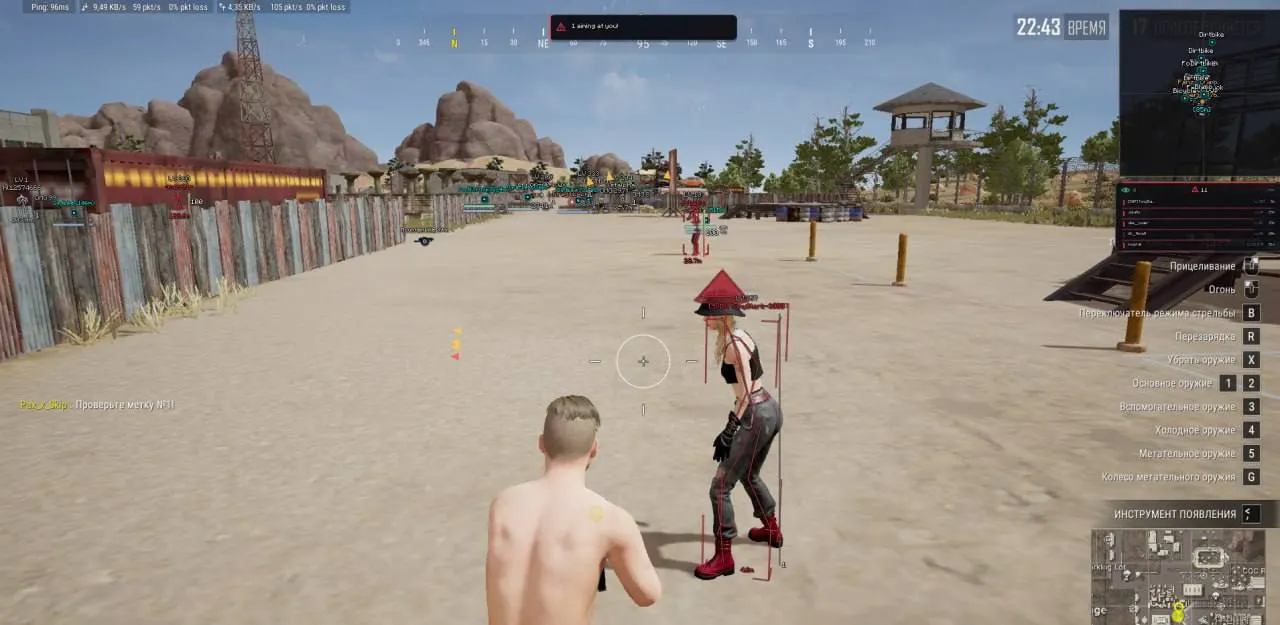
01 / 05
Purchase
Setup instructions
Bleak for PUBG: Battlegrounds: system requirements
Game mode
not specified
Processors
Intel / AMD
Game client
not specified
Systems
not specified
Built-in Spoofer
No
USB drive
No
Additional requirements
Works with Secure Boot on; BIOS: any; Disk type: any; Overlay: Discord; Disable: Windows Defender, VBS, Core Isolation
About Bleak for PUBG: Battlegrounds
External BLEAK for PUBG: aimbot with bone selection, Humanize mode and visibility check, bullet prediction based on the ballistics of the weapon in your hands, recoil control per weapon type, player ESP with skeleton, health, kills and damage, a danger panel and an aim-at-you warning, loot ESP with filters, vehicles with durability and fuel, airdrops and grenades, a 2D radar and Battle Mode. Works through the Discord overlay with Secure Boot on, Steam client, Windows 10 and 11 versions 2004–26H1.
Features of Bleak for PUBG: Battlegrounds
Aim Mouse
- Aimbot master switch. Turns on automatic aiming at enemies inside the FoV zone.
Aim-Bot keybind
- Main aimbot activation key. Aiming works only while the key is held, which keeps it controlled and natural.
Aim-Bot keybind 2
- Second (extra) aimbot activation key - handy to put on a side mouse button.
Bullet prediction
- Bullet prediction: when you aim, a marker shows the real impact point - accounting for lead (target movement speed) and bullet drop over distance. Ballistics are taken from the weapon currently in your hands.
Recoil control
- Recoil control: when you fire while aiming (LMB + RMB), the crosshair is smoothly pulled down to offset the weapon's kick. The base strength adjusts automatically to the type of weapon in your hands (AR/SMG/DMR/sniper). Works only with the menu closed - clicks on the interface do not move the camera.
Recoil strength %
- Manual recoil pull-down strength (0-200%). The default is 200.
Crosshair
- Shows a static crosshair in the center of the screen (with its own color).
Crosshair style
- Static crosshair style: Dot, Cross, T-shape, Ring or Chevron.
Smoothing
- Aim smoothing strength (1-10). High values give smooth, human movement instead of sharp robotic snaps. The key setting for playing legit. In Humanize mode it sets how soft the aim spring is.
Humanize
- Human-like aim: it pulls onto the target with natural movement — smooth acceleration, slowing down at the target with a slight overshoot and correction, a reaction delay on new targets (~90-330ms) and barely noticeable crosshair jitter. It looks like manual shooting, not robotic tracking.
Humanize strength
- Humanize strength (0-100%): scales the reaction delay, jitter and slight overshoot. 60% looks clearly human but stays controllable; 0% is a pure spring with no effects.
Radius
- Aim zone (FoV) radius in pixels (0-300): the screen area within which the aimbot locks onto a target.
AimBone
- Head — the head (maximum damage, high risk).
- Neck — the neck (a good balance of damage and stealth).
- Chest — the chest (less damage, but a larger hit area and maximum stability).
- Auto (nearest bone) — auto bone: the aimbot aims at whichever bone (head / neck / pelvis) is closest to the crosshair, with a slight random weighting, so hits are spread across bones like a real player's. The chosen bone is "sticky": it holds while the target stays the same and is re-picked about once a second.
Visible check
- The aimbot only targets visible enemies (not through walls).
Draw FOV
- Show the aim zone on screen.
FOV shape
- Aim zone shape: Circle, Triangle or Diamond.
Color Fov
- Aim zone color. Next to the settings there is a live mini preview of the zone with the current radius and shape.
Box Type
- Choose the box type around enemies: Full, Corner, 3D Box or None (off).
Names
- Shows in-game names above players' heads.
Skeleton
- Turns on the enemy skeleton display.
Bone thick
- Skeleton line thickness slider (1-5).
Distance
- Shows the distance to the target in meters.
Draw range
- Player draw distance in meters (0-1000; 0 - no limit). Right at the distance limit the ESP fades out smoothly and the text gets smaller, so the picture stays clean.
Health
- Turns on the player health bar (a vertical bar to the right of the box, with a white "ghost" of the last damage so you can see how much you took off).
Kills
- Shows the player's kill count in the current match (K) to the right of the box.
Player info
- Shows extra info: damage dealt (DMG) to the right of the box and survival level (LV) under the name.
Spectators
- Shows the spectator list (players watching you after they die). The counter is shown in the danger panel.
Danger warning
- Warning panel for nearby enemies: a count of enemies within 200m and a list of up to 5 nearest ones (name, distance bar, K/DMG). The panel is docked to the radar; if the radar is off, it sits at the top center of the screen.
Off-screen arrows
- Arrows at the screen edges pointing to enemies outside your view.
Arrows radius
- Radius of the circle on which the off-screen arrows sit (100-600).
Aiming at me warn
- A warning when any enemy is aiming right at you.
Knocked
- Downed (knocked) players are highlighted in a separate color across all ESP elements, so you instantly see who to finish off.
Preview
- Live preview of your ESP setup right in the menu (box, skeleton, name, level, distance, health bar).
Battle Mode
- Battle mode on the F4 key: one press turns off the noisy ESP — loot, vehicles, grenades and airdrops; players, skeletons, radar and warnings stay. The key can be rebound in the menu, and an indicator lights up on the radar while the mode is on.
Dropped Items
- Master switch for loot ESP (items on the ground).
Item Name / Item Distance / Item Marker
- Loot sub-settings: item name, distance to it and a marker icon.
Loot filter
- Choose categories to show: Weapons, Attachments, Ammo, Meds/Boosts, Armor, Helmets, Backpacks, Grenades, Other.
Loot 3LVL+
- Show only level 3 gear (Lv3 armor, helmets and backpacks).
Smart loot filter
- Smart filter: checks what is in your backpack and hides surplus items (medkits/grenades when you already have enough).
Items dist
- Item display distance (0-350m).
Grenades
- Markers for thrown grenades.
Airdrop
- Airdrop marker (falling supply crate).
Vehicles
- Vehicle ESP: a chip marker + a "Name (distance)" line.
Vehicle Health
- Vehicle durability bar under the chip (green / amber / red + percent).
Vehicle Fuel
- Vehicle fuel bar under the chip (blue + percent).
Vehicles dist
- Vehicle display distance (0-3000m).
Radar 2D
- Master switch that puts a 2D radar on screen: a dark square with a crosshair grid, chevron contacts pointing where players are moving, and a white arrow for your camera in the center. The radar does NOT rotate with the camera - it is always oriented to the cardinal directions (world map).
Only Players
- Filter: the radar shows players only, hiding loot and vehicles.
Items on radar
- Shows loot on the radar.
Vehicles on radar
- Shows vehicles on the radar.
Radar Zoom
- Radar scale (pixels per meter): lets you zoom the view out or in. Objects outside the radius are hidden instead of piling up at the edge.
Radar size
- Slider for the overall size of the radar window on screen (from 200 to 700).
X position / Y position
- Sliders for precise radar positioning along the X and Y axes of your monitor. With the menu open you can simply drag the radar with your mouse.
Appearance
- Live preview of the radar's look right in the menu.
Palette
- Color 2D Box — Color of the box around an enemy.
- Box (not visible) — Box color for the "not visible" rendering variant.
- Color Bone — Color of the skeleton lines.
- Skeleton (not visible) — Skeleton color for the "not visible" variant.
- Color Name — Color of the player's nickname.
- Name (not visible) — Nickname color for the "not visible" variant.
- Color Distance — Color of the distance text.
- Color Crosshair — Color of the static crosshair in the center of the screen.
- Loot colors — Color setting for each loot category: Weapons, Attachments, Ammo, Medkits, Armor, Helmets, Backpacks, Grenades, Other.
- Vehicle color — ESP color for ground vehicles.
- Boat color — ESP color for boats / watercraft.
Menu color
- Menu accent (theme) color.
Auto Exit
- When you close the game (TslGame.exe), the cheat shuts down completely with it: the overlay disappears and the Discord process closes. No active traces of the cheat remain on your PC.
Overlay FPS limit
- Overlay FPS limit (0-360): raise it for smoother ESP.
Watermark
- On-screen watermark.
Language
- Menu language: English / Russian (all menu items and item names are translated).
Search
- Search bar for all menu features (in the header).
Menu Key
- Open and close the menu with the Insert or Home key.
Configs
- Input Name — Field for entering the name of your new config (the build name is filled in by default).
- Create New — Create and save a new config file with the entered name.
- Save Selected — Overwrite the config with the entered name using the current menu settings.
- Load Selected — Load settings from the config selected in the list (applies them to the current session).
- Rename — Rename an existing config selected in the list.
- Delete — Permanently delete the selected settings file.
- Refresh List — Force-refresh the config list (useful if files were moved manually).
- Config list — Shows all saved configs; the applied one is marked with an ACTIVE badge, and double-clicking a row loads the config instantly. The last active config is picked up automatically on the next launch.
Undetected
PUBG: Battlegrounds
Bleak Lite
From 253 ₽
Undetected
PUBG: Battlegrounds
AI Aimbot
From 995 ₽
Undetected
PUBG: Battlegrounds
Arcane Full
From 425 ₽
Undetected
PUBG: Battlegrounds
Arcane Lite
From 425 ₽
Undetected
PUBG: Battlegrounds
Courierscript
From 300 ₽
Undetected
PUBG: Battlegrounds
Evicted Aimbot
From 195 ₽
Undetected
PUBG: Battlegrounds
PUBG Spoofer
From 425 ₽
Undetected
PUBG: Battlegrounds
Shack Private
From 1275 ₽