Cheat won't launch: step-by-step checks
Contents6 sections
If a cheat won't launch, check these in order: the product status on its page, the system requirements, and the launch steps from the instructions; then look up the exact error text on the "Known issues" page. Still stuck? Send support your order number, a screenshot of the error and a System Checker report.
Below: checks from simple to complex, a table by launch stage, and a list of what to include when you contact support. General questions about keys and the first launch are covered in the installation and launch FAQ.
Check the status and the product first
The status is shown on the product page next to the name. If it says "Being updated", sales of the product are paused until a new version is out. Don't launch such a cheat, even if your key is still active. You can find out the timing via the "Ask about timing" link on the product page, and the store announces new updates in its Telegram channel and on its Discord server.
The label can lag behind events: if the game updated today and the page still says Undetected, ask support first. For the "Risk" status, also find out what it means for your product. Read more about what the "Being updated" status means and the other labels in a separate article. And remember: no one can completely rule out a ban, whatever the status.
Next, make sure you've opened the instructions for the exact product in your order. One developer can have several products with similar names: for example, Authority Full and Authority Lite for Escape from Tarkov are two separate products, each with its own page.
Compare the requirements with your PC
Open the "System requirements" section and compare each field with your computer:
- "Systems" — Windows version and build. For example, NNCheats Radar lists "Windows 10, 11 (23H2 or older)". The winver command shows your build.
- Architecture — x64 is required. The "ke init error" error means you're running on x32, while "bad OS" and "err us 10 2" mean your Windows version or architecture doesn't match the description.
- "Processors" and "Game client" — which CPUs and launcher are supported.
- "Game mode" — for example, borderless or windowed only. If the game runs in a different mode, switch it in the graphics settings.
- "Additional requirements" — read them in full. Mason Full for Rust requires a USB flash drive, UEFI, and Hyper-V and VT-x/VT-d enabled, and CourierScript Radar lists Windows 11 no newer than 23H2 in its "Systems" field.
Don't know your values? System Checker will collect them. And to avoid running into incompatibility next time, see how to check the requirements before buying.
Follow your product's instructions
If a product has instructions, the "Instructions" button is on its page under the plans. The instructions spell out the order for that specific loader: what to launch first, whether a reboot is needed, and which key opens the menu.
- BE Spoofer is launched before the game starts and requires a reboot, otherwise the new identifiers won't apply. Other details are in the article on how HWID spoofers work.
- For EXLAB EFT, according to the EXLAB EFT instructions, the cheat starts on its own after you launch the game, and the menu opens with the Insert key. If it didn't start, open the loader again while already in the game.
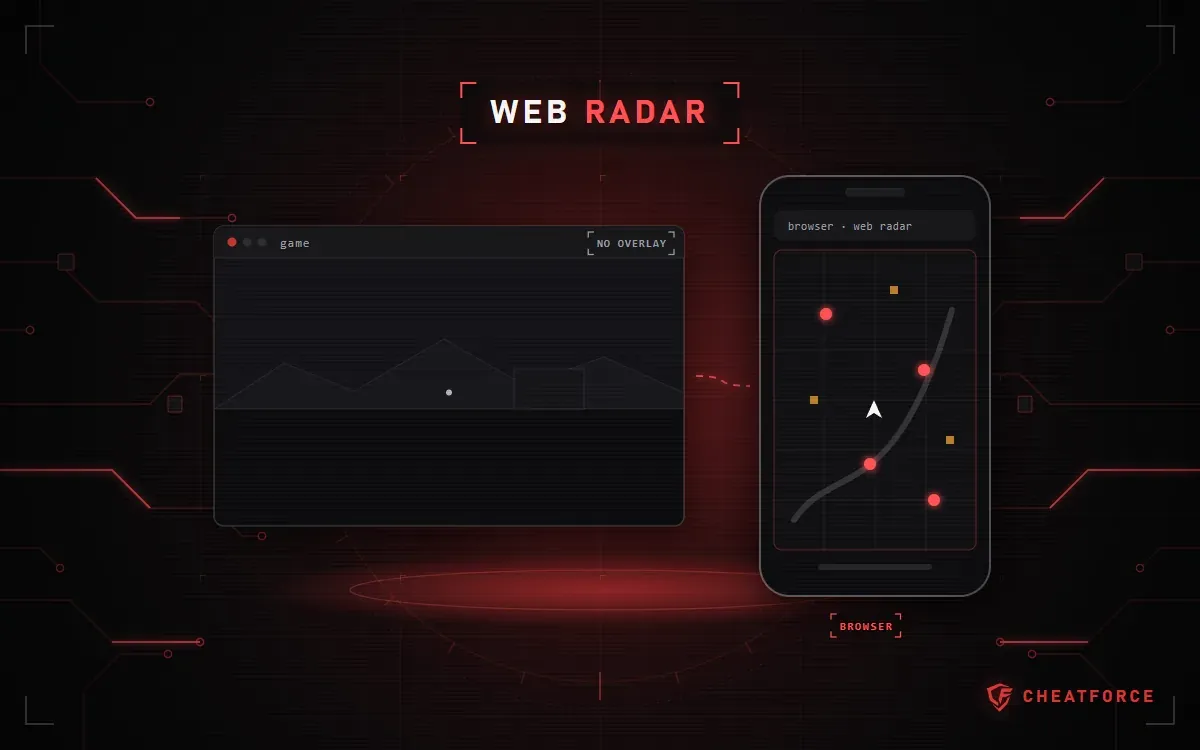
- NNCheats Radar is a web radar, so don't look for its map in the game: it opens in a browser, on a second monitor or another device.
Videos and guides for other cheats will only confuse you here: every loader has its own sequence of steps. If your product's instructions ask you to change Windows settings, follow only those steps and note what you changed — it'll come in handy when you contact support.
At what stage does the error happen?
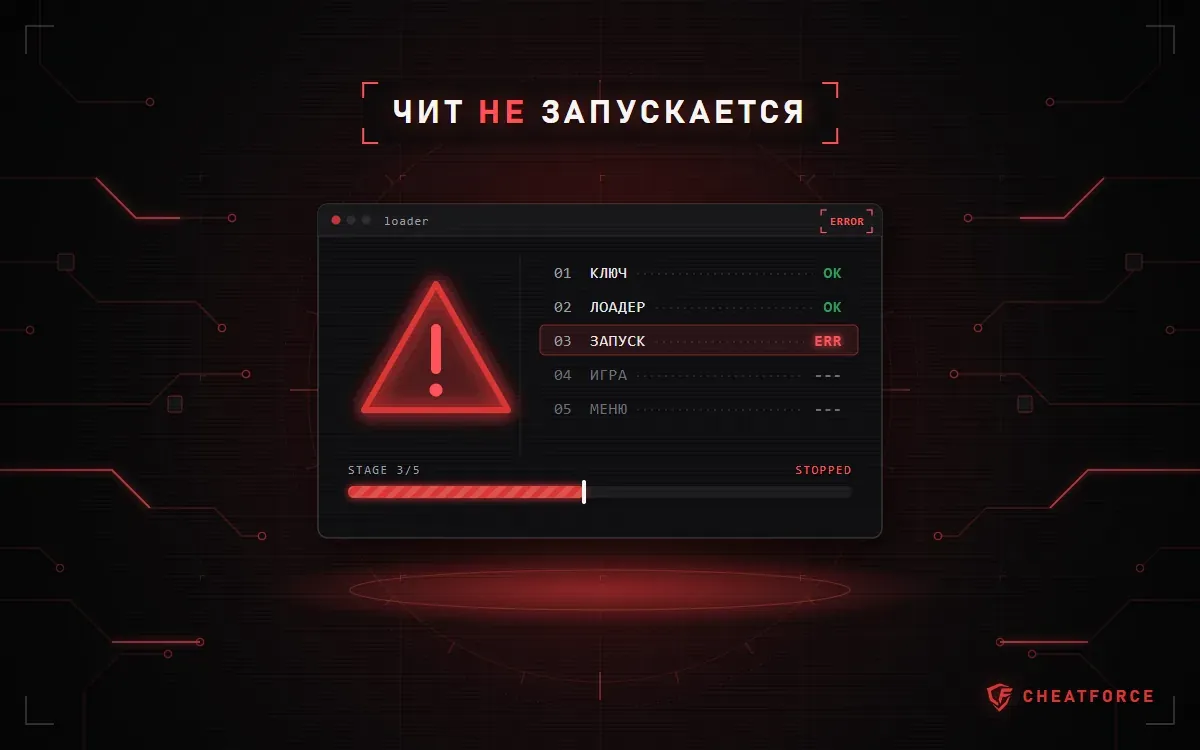
First figure out the stage where everything stops — that determines where to look for a fix.
| Stage | What to check | Where to get help |
|---|---|---|
| Key didn't arrive | Email, "Spam", your account | Support, within 24 hours |
| Loader won't open | Components and drivers | "Install components" tab |
| Loader shows an error | Exact error text | "Known errors" tab |
| Game closes | Window mode, launch order | Product instructions |
| No menu | Menu key, relaunch | Product instructions |
| Empty radar | Address and device | Instructions, support |
Under the terms of sale, the key arrives by email or in your account within 5 minutes of payment. If it's not there or in "Spam", tell support within 24 hours: after that, claims about not receiving access aren't accepted.
Known issues and System Checker
The "Known issues" page has two tabs:
- "Install components" — Visual C++, DirectX 12, .NET Framework 4.7.1 and the latest NVIDIA and AMD video drivers. Start here if the loader doesn't open at all.
- "Known errors" — loader errors with fixes. Search by the exact text. For example, "launch pressed" with nothing launching means third-party programs like a VPN or Process Hacker are interfering; "Your windows version is outdated" means you need build 1903 or newer; with ERR3, one possible cause is Cyrillic characters in the path to the loader folder.
System Checker is CheatForce's diagnostic utility. It collects your Windows version, build and architecture, hardware, BIOS and video driver data, Secure Boot, TPM, virtualization and Defender status, and a list of installed anti-cheats. The utility doesn't disable, delete or change anything.
Unpack the archive, run Run-CheatForce-Checker.cmd and wait for the report folder to appear on your desktop. Send report.txt or report.json to support. Don't confuse it with Checker.exe from some developers' instructions — that's a different program.
What to send to support
Contact CheatForce support: the Telegram bot is the main channel for orders and installation, and there's also Discord and email at support1@cheatforce.ru. In your first message, include:
- your order number, product and plan;
- the exact error text or a screenshot of the loader window;
- the stage where it fails, from the table above;
- your Windows version, processor and game client — or just the System Checker report;
- what you've already done: which packages you installed and what you changed per the instructions.
Help with installation and setup is free: on request, support will connect via AnyDesk or TeamViewer and can set everything up for you. Replies come within 24 hours on business days. Don't post your key in the public chat: the terms of use prohibit sharing it with third parties. Don't send your game account password to anyone either.
Important. If you're counting on a refund, read the refund terms before you reinstall anything. Refunds are issued if the product doesn't work after all diagnostic steps, up to and including reinstalling Windows; under the terms of sale, you need a screen recording from the moment you turn on the PC up to the launch attempt. There's no refund if the cause is an antivirus, a game update or a ban. Some developers don't offer refunds under any circumstances.