Bleak cheat for Rob Run on Windows
Undetected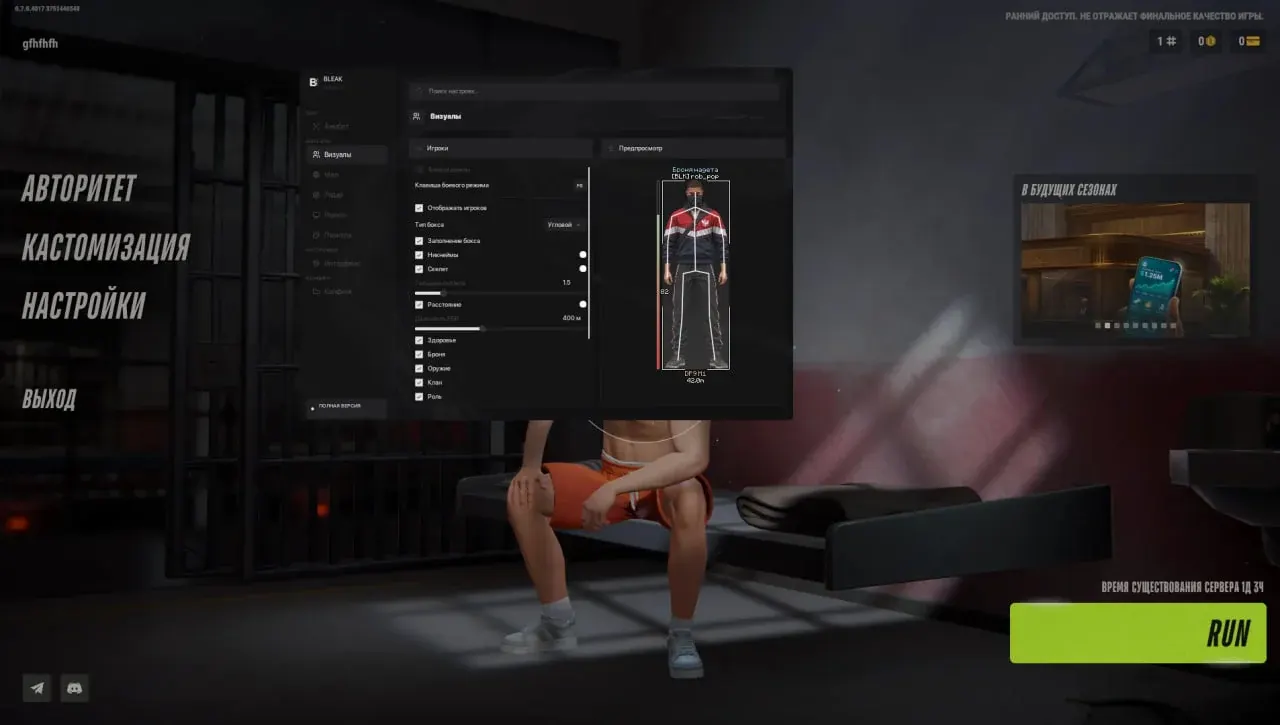
Purchase
Setup instructions
Bleak for Rob Run: system requirements
About Bleak for Rob Run
BLEAK is an external cheat for Rob Run on Windows 10 and 11. The menu is drawn through the Discord overlay. The Full edition's aimbot works while you hold a key: a choice of bone (pelvis, chest, neck, head), smoothing, FOV radius, distance up to 1000 m and a separate permission for NPCs; the Lite edition has no aiming.
Player ESP shows boxes, skeletons, health, armor, the held item, role, states and clan, with police highlighted separately. There is vehicle ESP with dimensions, owner and passengers, items and containers with icons and a base price, cameras, guards, doors, traders, banks and workbenches. A 2D radar with auto zoom, Battle Mode that hides the clutter and keeps the enemies, and a card that warns when a patrol approaches.
The menu comes in Russian and English, with a colour and opacity palette, a settings search and named profiles. It needs Discord with the game overlay on and Memory Integrity (HVCI) off. Keys for 1, 3, 7 and 30 days.
Features of Bleak for Rob Run
- Menu Key — Right Shift opens and closes the menu. Aiming pauses while the menu is open.
- Startup / F4 — F4 is used at the normal startup continuation step. Right Shift is the menu key.
- Full / Lite — Full includes aiming settings and functionality. Lite retains ESP, world objects, radar, Battle Mode, police alerts and profiles, with aiming unavailable.
- Menu Navigation — Eight BLEAK sections: Aimbot, Visuals, World, Radar, Misc, Palette, Interface and Config. Player and equipment settings share the Visuals page.
- Build Indicator — The lower sidebar displays the Full/Lite edition and ROB RUN title.
- Aim enabled — Enables aiming while the assigned key is held and ROB RUN is the foreground application. Disabled by default.
- Activation key — Assignable keyboard key or mouse button. Defaults to the right mouse button and is configured through the menu binding field.
- Aim smoothing — Aim smoothing ranges from 0.5 to 30 and defaults to 0.5. Higher values produce slower, smoother movement.
- Aim FOV — Target-selection radius: 10–500 pixels. Eligible targets closest to the selection area's centre receive priority.
- Target bone — Choose Pelvis, Chest, Neck or Head. Head is selected by default. The selected actual bone must have valid position data.
- Aim distance — Maximum target-selection distance: 10–1000 m.
- Target NPC — Separately allows aiming at NPCs. Disabled by default.
- Input Conditions — Aiming stops when the key is released, the menu opens, the game loses focus or sufficiently recent data is unavailable. The local player and dead characters are excluded.
- Aim / Battle Mode — Battle Mode filters ESP and radar presentation. Its toggle does not replace aiming target-selection settings.
- Draw FOV — Independently enables one FOV circle. The circle does not require aiming to be enabled. No additional square is used.
- FOV colour — Sets FOV circle colour and opacity in Aimbot or Palette.
- Crosshair — Independent screen-reticle toggle. The reticle and FOV circle can be enabled separately or together.
- Crosshair style — Five styles: Dot, Cross, T-cross, Ring + dot and Chevron.
- Crosshair colour / Preview — Separate reticle colour and in-menu FOV/reticle preview. These visual settings are also available in Lite.
- Battle Mode — Leaves opponents in ESP and on radar while hiding world labels and vehicles. Saved category toggles are preserved.
- Battle Mode key — Configured in Visuals → Battle Mode key. Defaults to F6 and supports keyboard keys and mouse buttons.
- Toggle Behaviour — One press toggles the mode once; holding the key does not repeat. The bind works while the game is focused and the menu is closed.
- Clan Battle Teams — Clan battles use actual attacking and defending sides. Allies are hidden; unknown membership is not treated as an opponent when team context is active.
- Open-world Allies — In the open world, the same non-empty clan is hidden. Other police are allied when the local role is police. Dead characters and ordinary NPCs are excluded.
- Battle Mode Indicator — A BATTLE MODE badge appears beside the enabled radar and remains visible when contact labels are disabled.
- Players — Main player ESP toggle. Radar is controlled separately.
- Names — Displays the nickname above the character, with optional clan tag, police marker and entity ID.
- Box type — Choose Full box, Corner box or None.
- Box fill — Separately enables translucent box fill. Enabled by default.
- Skeleton — Displays available actual character joints. Pose updates are smoothed, with short data gaps handled by retaining a recent pose within validity limits.
- Bone thickness — Skeleton line thickness: 1–4. Colour is configured separately.
- Distance — Character distance in metres, shown in the label block below the player.
- Player distance — Maximum player ESP distance: 10–1000 m. This slider does not limit radar.
- Health — Health bar to the left of the box, with a numeric value when current and maximum HP are available.
- Police — Separate police filter, dedicated colour and [COP] marker.
- NPC / Corpses — Independent toggles for ordinary NPCs and dead characters. The local character is excluded from ESP and has no display toggle.
- ESP Preview — Preview of the box, skeleton, labels and supported indicators on the Visuals page.
- Held item — Displays the held weapon or item when its description is available, with an empty-hands label when appropriate.
- Armor — Shows the presence of armour and adds a numeric value when available. Armour colour is separate.
- Clan — Adds a non-empty clan tag to the character name.
- Role — Displays the available character role. Enabled by default.
- States — Displays available firing, sprinting, crouching, reloading, arrest and knockout states. The set depends on character data.
- IDs — Adds the entity ID to the character label. Available on the Visuals page.
- Vehicles — Displays cars and helicopters in the world. Radar vehicles have an independent toggle.
- Vehicle boxes — Three-dimensional boxes using available vehicle dimensions and orientation.
- Vehicle labels — Name and distance share the main row; additional information uses a separate row. Colour and opacity are configured in Palette.
- Vehicle distance — World vehicle ESP distance: 20–1500 m.
- Owners — Adds the available owner's name or an unowned-vehicle marker.
- Passengers — Shows the number of detected characters associated with the vehicle.
- Engine / Vehicle cargo / Speed — Separate toggles for engine state, cargo presence and speed in km/h. Information appears when available.
- Detailed information / Detail distance — Enable details in Misc and set their display distance from 10 to 500 m.
- Dropped items — Dropped items and available cash points. Known quantities or amounts are retained in the label.
- Item icons — Uses game icons for known items. Enabled by default; disable to retain text-only labels.
- Base item prices — Shows a known item's base price with a $ sign. Enabled by default. This is the catalogue price per unit, not a stack total or current market price.
- Loot bags — Separate filter for loot points and bags. A container or bag marker does not imply a full contents view.
- Containers — Containers, display cases, shelving and supported storage from available world data.
- Cargo — Separate layer for cargo objects.
- Empty objects — Allows confirmed empty or taken objects to remain visible. Disabled by default; unknown state is not treated as empty.
- Item distance / World distance — Item distance and the overall world-object limit are separate, each ranging from 10 to 1000 m. Items obey both limits.
- Object label layout — The icon sits above the name; distance and the enabled price are below the name. Rows are centred on the object's position.
- Weapon category — Weapons receive an additional WEAPON category line above the name.
- Distance / Overlap fading — Distant world labels fade smoothly. When labels overlap, the farther label becomes more transparent. Icons and text fade together; minimum multipliers are 75% for distance and 55% with overlap, before palette alpha.
- Object dots — Optional dots at object positions. Disabled by default; enable on the World page.
- Object positions / Readable names — Labels stay at their projected object coordinates. Known names are translated during rendering; unnecessary technical numeric suffixes are cleaned up while weapon model designations are preserved.
- Cameras — Separately enables security cameras. A damage marker is used when that state is available.
- Guards — Stationary guard-post markers, separate from police characters.
- Security — Available alarms and security panels.
- Medical — Medical cabinets and supported medical points.
- Doors — Available doors and associated interaction points.
- Interactions / Points of interest — Independent filters for additional interactive objects and points of interest.
- Traders — Displays available traders.
- Vehicle spawns — Vehicle-service and spawn-point markers.
- Hideouts / Workbenches — Separate toggles for hideouts and available workstations.
- Banks / Roulette — Separate toggles for banks and roulette locations.
- Radar — Square radar with centre guide lines and a local-direction marker.
- Radar rotate — Rotates the radar with the camera direction. Enabled by default.
- Radar contacts — Displays players and police. Available direction data produces compact arrows; otherwise circular markers are used.
- Radar labels — Player nicknames beside markers. Disabling leaves icons only. The current BLEAK presentation does not add contact-distance text.
- Radar vehicles — Independent radar-vehicle toggle. Compact icons have no vehicle-name labels. Vehicles are hidden in Battle Mode.
- Radar size — Size: 100–400 pixels.
- Radar zoom — Manual zoom: 0.05–5.00. Higher values zoom in more.
- Horizontal / Vertical / Drag — Set horizontal and vertical position with sliders, or drag the radar with the mouse while the menu is open.
- Radar range / Filters — Contacts are drawn inside the square. Police, NPC and Battle Mode filters apply; dead characters are excluded. Player ESP distance does not limit radar.
- Radar player colour — Separate radar-player colour. Police use the dedicated police colour.
- Auto zoom — Smoothly zooms in when an eligible character is nearby, returning to the manual scale as the contact moves away.
- Reaction range — Automatic zoom reaction distance: 30–500 m.
- Maximum zoom — Maximum automatic zoom: 0.05–5.00. Automatic zoom does not zoom out below the manual baseline.
- Zoom speed — Transition time: 0.15–2.00 s. Lower values respond faster.
- Ignore clan — Excludes the same non-empty clan from zoom triggers. Battle Mode adds its opponent filter.
- Manual scale preservation — Automatic zoom preserves the manual setting and accounts for radar size.
- Police proximity alert — Separate toggle in Misc. Displays a patrol card at the top centre of the screen.
- Police alert range — Alert radius: 20–300 m. Defaults to 100 m.
- Patrol state — Shows Patrol is approaching when distance is closing, or Patrol nearby when a patrol is already close.
- Patrol distance — Tracked patrol distance appears in a separate area of the card.
- Arrival state — Within 20 m, the text smoothly changes to Patrol is close and Close proximity.
- HUD animation / Repeat logic — Smooth slide-in and fade-out. The card disappears after close contact; later eligible patrols can trigger another alert.
- HUD design — BLEAK card with a shield, separate distance area and 8 px Minecraft text. The alert can be fully disabled.
- Player colours — Separate colours for boxes, skeletons, nicknames, distance, held items, police, health, armour and radar players.
- World colours — Separate colours for items, containers, medical objects, security, services, other objects, loot distance and vehicles.
- Colour / Alpha — The palette edits colour and opacity for supported elements. Automatic world-label fading multiplies the selected alpha.
- FOV / Crosshair colours — Independent colours for the FOV circle and screen reticle.
- Restore palette — Restores default BLEAK colours when the reset button is pressed.
- Language — Russian and English interface. Switching updates known world names, roles, states, armour text, distance units and vehicle details without restarting. Nicknames and owner names are preserved.
- Minecraft font — In-game labels use outlined Minecraft Rus Regular from BLEAK WARDOGS. The menu retains its BLEAK interface font.
- ESP font size / World text size — Independent ESP and world-label sizes: 8–20 px, default 8 px. Sizes are baked separately, so menu scaling does not stretch in-game text.
- Menu scale — Choose 75%, 80%, 85%, 90%, 95% or 100%. The selection is saved in the configuration.
- Menu colour / Background animation — Configure the accent colour and animated background.
- Search settings — Search settings by Russian or English names. Search results edit the same options as the regular pages.
- ESP layer — World labels and geometry render below the menu and do not cover its controls.
- Profile name / Profile list — Profile name and saved JSON configuration list on the Config page.
- Create new — Creates a new named profile without overwriting an existing file.
- Save — Saves current settings under the entered name. An existing file with that name may be overwritten.
- Load selected — Loads the selected profile, including ESP, Full aiming, world objects, radar, Battle Mode bind, palette and appearance.
- Rename / Delete — Renames or deletes the selected profile.
- Autosave — Menu changes are automatically saved to the current configuration. Named profiles are managed separately.
- Reload current settings — Save current settings and Reload current settings manually write and reload the current configuration.
- Configuration paths — Autosave: C:\Windows\System\bleak_robrun.json. Named profiles: C:\Windows\System\configs_bleak_robrun.